What would happen if you were hacked and lost access to all of your business records, not to mention thousands of precious photos?
Key Takeaways:
- Backups are your business safety net.
- You can’t prevent every cyber incident.
- Cloud + external backups = stronger protection. Using a mix of backup methods, updated regularly, gives you the best chance of bouncing back fast after a cyber incident.
Backing up data isn’t just a ‘nice to have’. It’s essential. Because when something goes wrong (think hardware failure, ransomware, or accidental deletion) your backups are your safety net.
Adopting good cyber-safe habits like automatic updates and multi-factor authentication can help prevent online threats, but backing up your data is essential to recovering from one.
“If you lose access to your files, restoring from secure backups will enable your organisation to recover and start operating again sooner,” says the Australian Cyber Security Centre.
At Cyber Wardens, we believe prevention is important, but recovery matters just as much.
Why backups matter
- Ransomware and cyber attacks can encrypt or destroy live data. Without backups, you may be forced to pay a cyber criminal - or lose everything.
- Hardware failures, theft or disasters happen. A computer, server or hard drive can fail at any time.
- Human error is one of the biggest causes of lost data, such as deleting the wrong file, overwriting a vital document or misconfiguring settings.
- Business continuity depends on it. If your business can’t access critical files, operations can be disrupted, risking lost revenue, delays to customers and reputational damage.
Action plan
We have put together a step-by-step guide on how to back up your data safely.
1. Figure out what you need to back up
Start by listing your important files: personal documents, photos, work files, financial records, emails, etc.
Decide whether you only back up files, or the whole system (so you can restore everything, including programs, settings). This is called a “system image” backup.
Some files change often (work documents, financial data), some less so (old photos). You may want to back up “hot” data more often.
2. Adopt the 3‑2‑1 rule
Experts recommend keeping three copies of your data (original + two backups), so if one backup fails or is destroyed, you still have others.
- Use two different types of storage (e.g. external drive + cloud)
- Keep one copy in a safe location off-site (away from your office)
3. Select your backup options
External storage device
You can use an external drive (for example, a USB stick, an external hard drive, or SSD) to back up your important files. Lock it with a password so only you can access it. A good plan is to copy your data to it at the end of each day, so you always have a recent backup.
Make sure this external drive is separate from your main computer network. If attackers manage to gain access to your network, they may encrypt or delete backups that are connected. Keeping the backup device isolated helps protect it.
The cloud
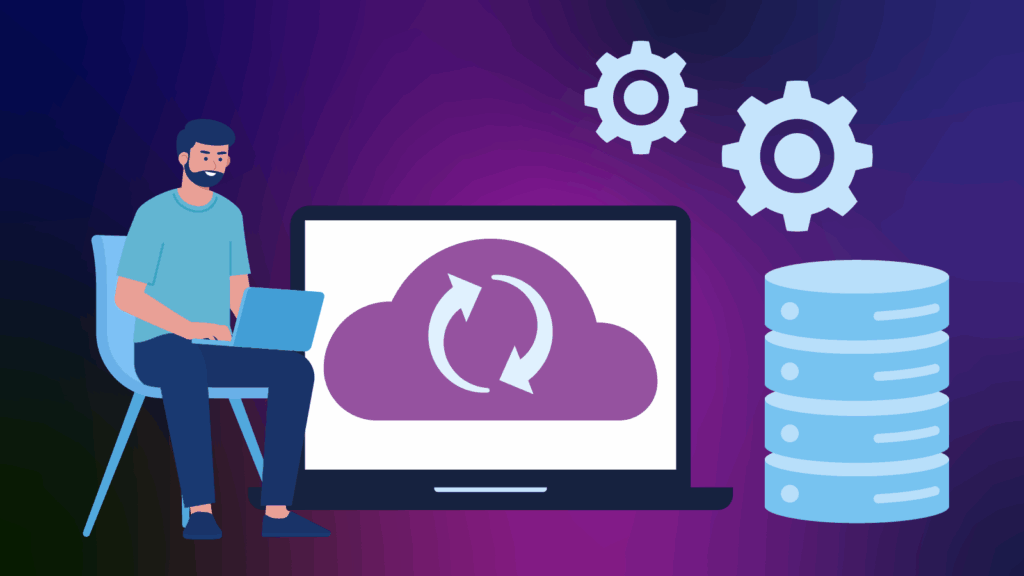
Think of the cloud as a big network of digital filing cabinets. When you “save to the cloud,” your important files go into those cabinets, and copies of them are stored in many places (across different data centres). This means if one copy fails, others still exist.

Instead of saving files directly to your downloads folder or desktop, save it to a folder in the cloud. That has two benefits: You’ll have a backup automatically; and you can open those files from different devices (your phone, another computer, etc.).
The most reputable cloud storage providers (for example Microsoft OneDrive, Google Drive and iCloud) are highly secure. They will encrypt your data, but it still pays to do your research to ensure your cloud provider is reputable and safe.
Plus, the cloud offers automatic backups so it will save as you go.
How to set up cloud backups
- Sign up with a provider and install their backup app.
- Secure your account with a strong password and multi-factor authentication.
- Choose which folders you want backed up.
- Set the schedule – continuous or daily works best for most people.
- Turn on version history if offered, so you can recover earlier versions of files if needed.
- Test restoring a file to make sure everything works.
How to set up external backups
- Connect an external hard drive or SSD to your computer.
- On Windows, use File History or third-party tools; on Mac, use Time Machine.
- Choose the files or full system to back up.
- Schedule automatic backups – weekly full backups are a good start.
- After backing up, disconnect the drive. This prevents malware or ransomware from attacking your backup.
- Store the drive somewhere safe, ideally away from your computer.
Stay up to date
A backup is only useful if it works when you need it. Every few months, restore a file or two from both your cloud and external backups. This gives you peace of mind that your system is working. Also, replace old drives every few years, and review your backup plan as your data grows.
For more useful tips and tools to protect yourself, your team, and your business from common online threats, become a Cyber Warden.