Key Takeaways:
- Strong passwords stop cyber criminals in their tracks. Regularly updating them helps protect your business from costly breaches.
- A few minutes can save thousands. Changing weak or reused passwords is quick, simple, and one of the easiest ways to stay secure.
- Passphrases = stronger protection.
It only takes a few minutes (a perfect coffee break task!), and helps keep your personal and business information safe.
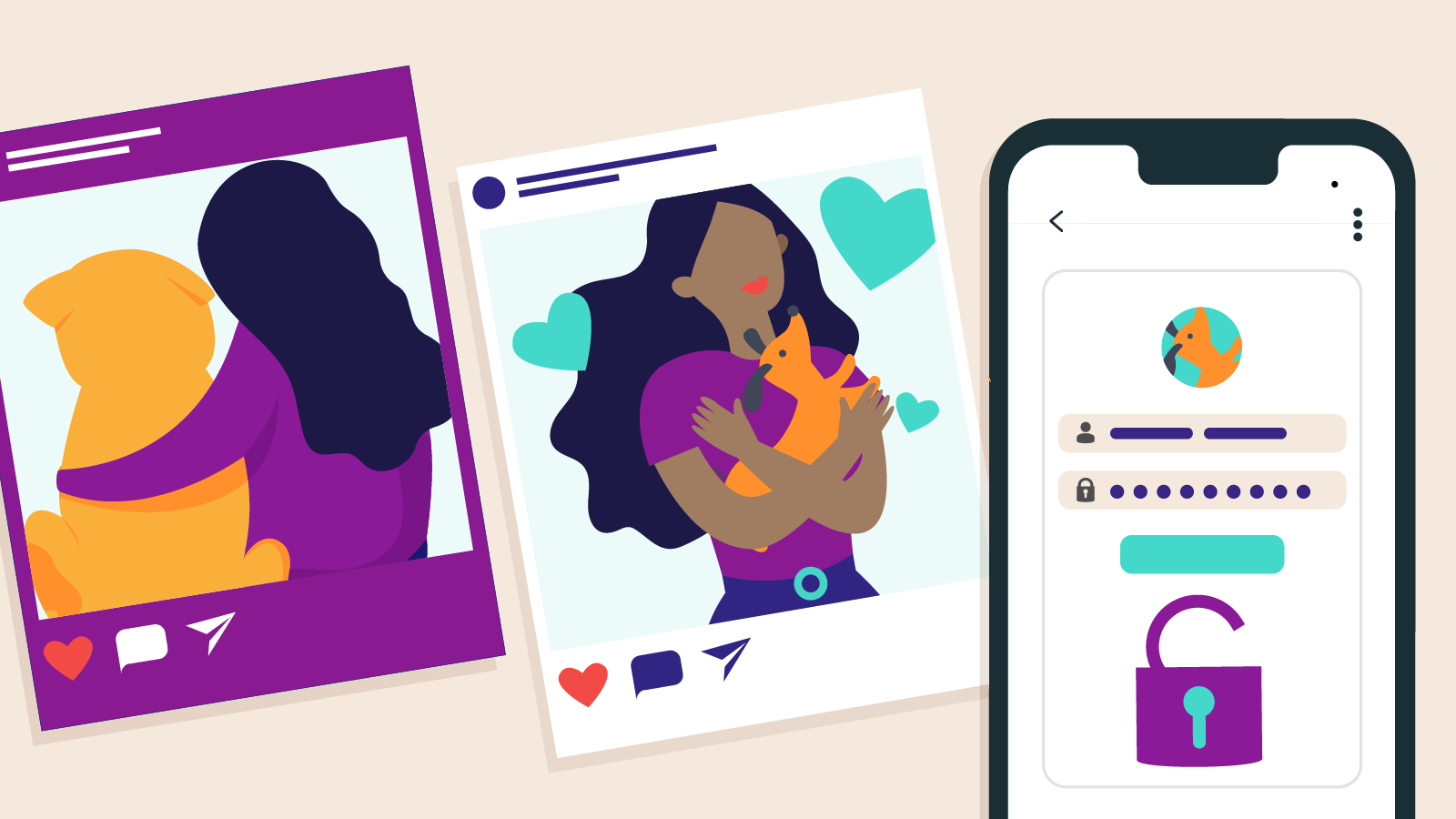
Whatever you do though, don’t use weak passwords such as your cavoodle’s name or beloved sporting team.
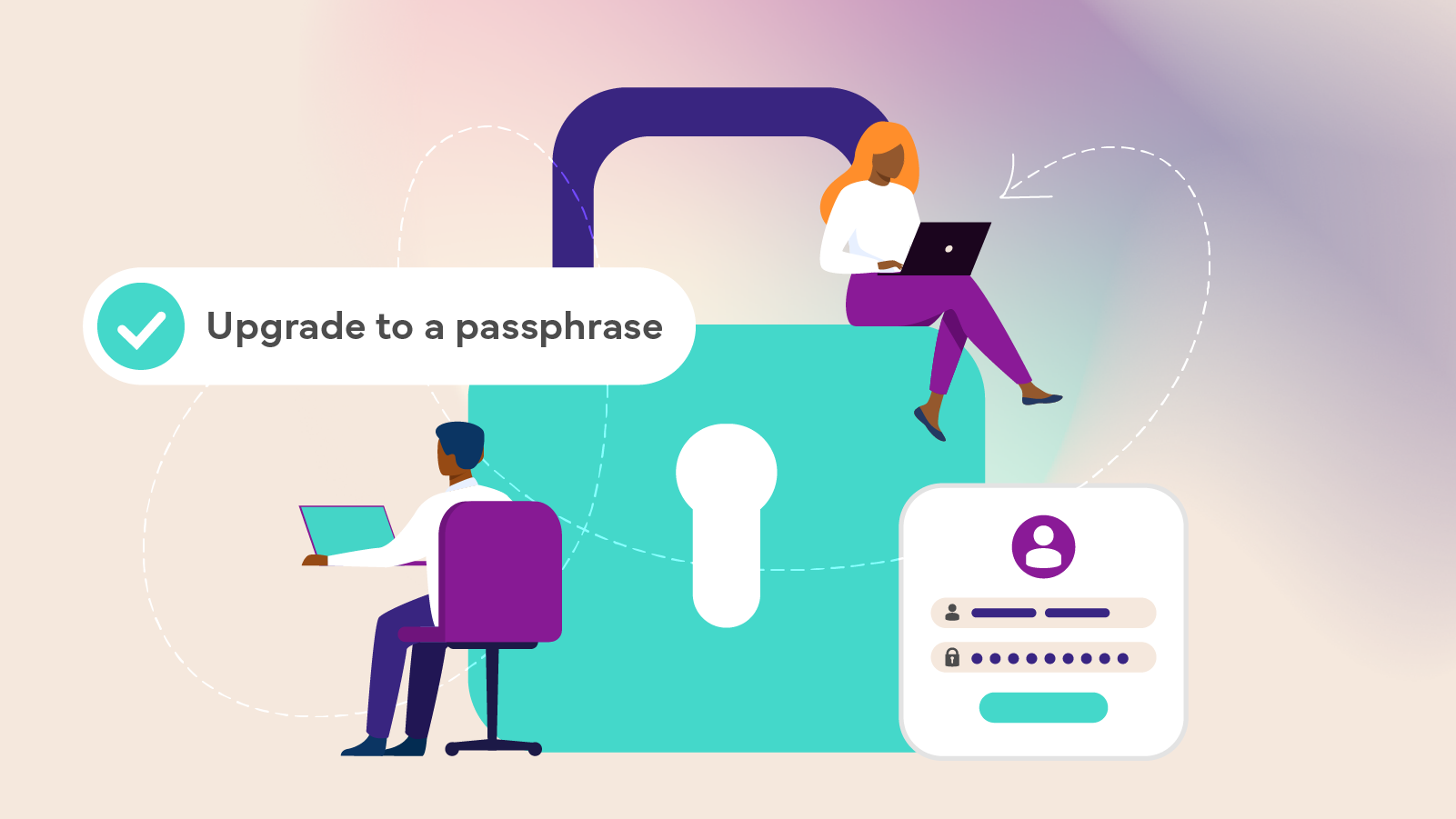
Even better, consider using a passphrase with four or more random words to make it even more difficult to crack.
Here’s a simple guide to changing your password on most websites and apps.
When should you change your password?
Never fear, we don’t expect you to change your password every week. Who has time for that?
But you should consider it if you have:
- Used the same password for a long time, or use the same password on more than one account
- Received a warning about a data breach
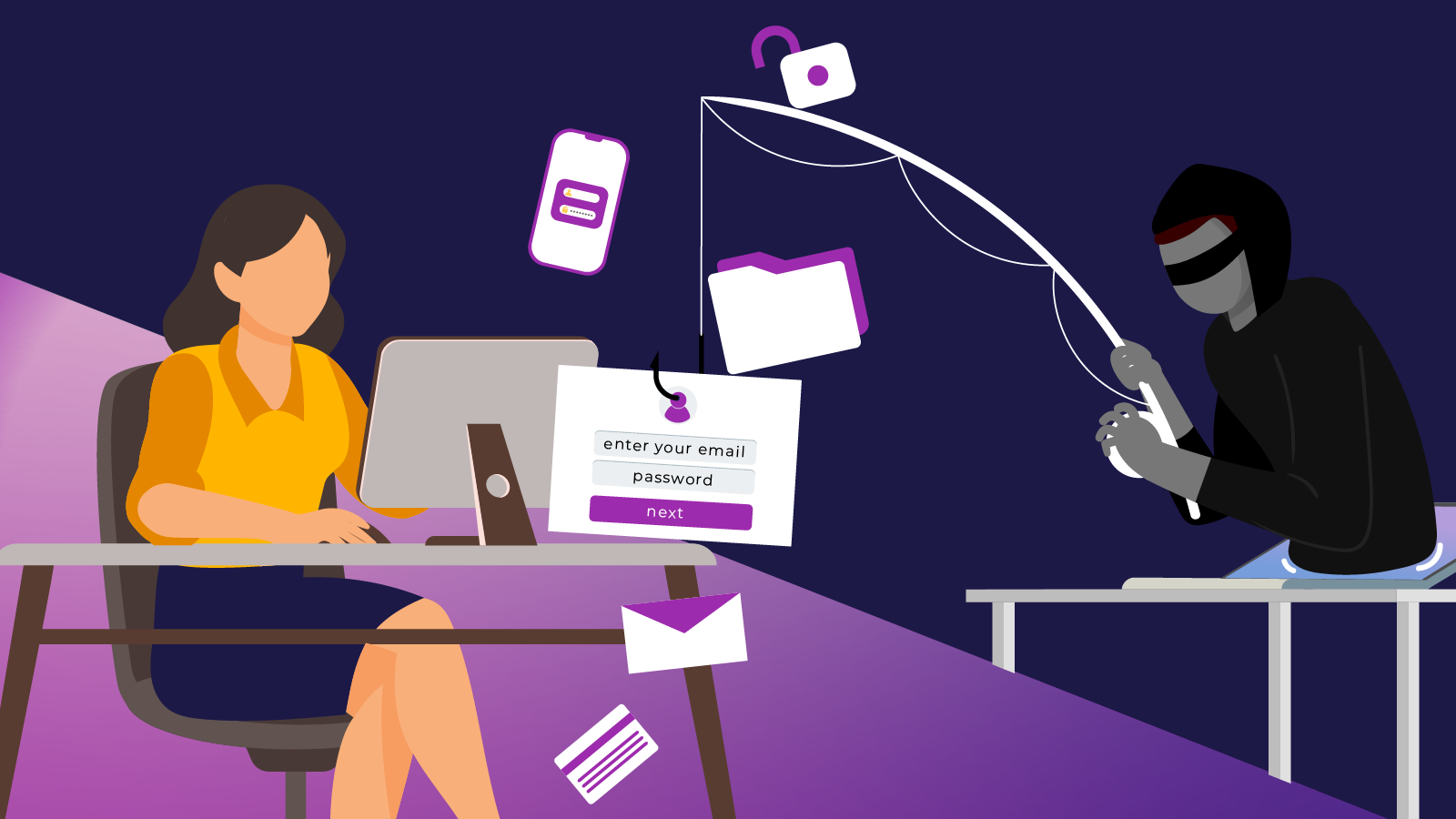
- Clicked a suspicious link or opened a strange email
- Shared your device with someone else
Step by step
1. Log in to your account
First, go to the website or app where you want to change your password and log in with your current details.
2. Go to your account settings
Once you’re logged in, look for your profile icon, usually in the top-right corner of the screen.
Click it, and then select Account settings, My account, or something similar.
3. Find the password section
In your account settings, find the section labelled Security, Login & Security, or Password. If it’s not immediately obvious, try the search bar.
Click on ‘change password’ or ‘update password’.
4. Enter your current password
Most sites will ask you to type in your current password first, to make sure it’s really you.
5. Create a strong new password or passphrase
Now, choose a new password or passphrase that’s strong and hard to guess.
A good password should include:
- At least 14 characters
- A mix of capitalised and lower case letters
- Numbers and symbols
A passphrase, on the other hand, is stronger and involves words strung together, such as your five favourite movies in order, or 4 or 5 random words that you’ll remember. For example: DancingKingBuysBroccoliCar.
In both cases, avoid setting a password using easily identifiable information, such as your birthday, pet’s name, or last holiday destination. Don’t use the same password across multiple accounts. If one gets hacked, others could be at risk.
Pro tip: Use a password manager to help you create and remember strong, unique passwords.
6. Confirm and save
You’ll usually need to type your new password twice: once to create it and once to confirm.
Click save, update, or confirm to finish.
You may be logged out of other devices. That’s normal. Just log back in with your new password.
Once you are done, make sure you have turned on multi-factor authentication – a second step to keep your account secure.
Explore the Cyber Wardens blog for more guides to help you and your team stay cyber safe.