
For small business owners, Google Workspace is a simple way to manage email, calendars, documents, video calls and more, all from one platform. Whether you’re a sole trader or running a growing team, setting up Google Workspace doesn’t require technical skills or an IT department. With a bit of preparation, you can be up and running quickly.
Key Takeaways:
- Google Workspace gives small businesses professional tools in one place: Email, storage, documents, calendars and video calls, all cloud-based.
- You don’t need to be an IT expert to get started: Most businesses can set up Google Workspace in under an hour.
- Security should be part of your setup: Strong passwords and multi-factor authentication help protect your account from day one.
What is Google Workspace?
Google Workspace (formerly G Suite) provides professional, cloud-based tools such as:
- Custom business email (for example, you@yourbusiness.com)
- Google Calendar for scheduling and reminders
- Google Drive for cloud file storage
- Google Docs, Sheets and Slides (similar to Word, Excel and PowerPoint)
- Google Meet for video calls
- Admin controls to manage users and security
Because everything is cloud-based, you can work from anywhere and collaborate in real time with staff or clients.
Step-by-step guide on how-to set up Google Workspace for your small business
Step 1: Choose your plan
Visit the Google Workspace website and select a plan that suits your needs, then start a free trial.
Most small businesses begin with Business Starter or Business Standard. You can upgrade later if you need more storage or advanced features.
Step 2: Enter your business details
ou’ll be asked for:
- Your business name
- Number of employees (it’s fine if it’s just you)
- A current email address for setup
- \You’ll also create your first user account, usually for yourself.
Step 3: Set up your business domain
To use a professional email address (like yourname@yourbusiness.com), you’ll need a domain name.
- If you already own a domain, you can connect it during setup
- If not, you can purchase one through Google
Google will guide you through connecting your domain by updating DNS records. Step-by-step instructions are provided based on your domain provider, such as GoDaddy or Squarespace.
Step 4: Create your email and login
Next, you’ll create your first business email address, such as:
- hello@yourbusiness.com
- info@yourcompany.com
This email will also be your main login for Google Workspace.
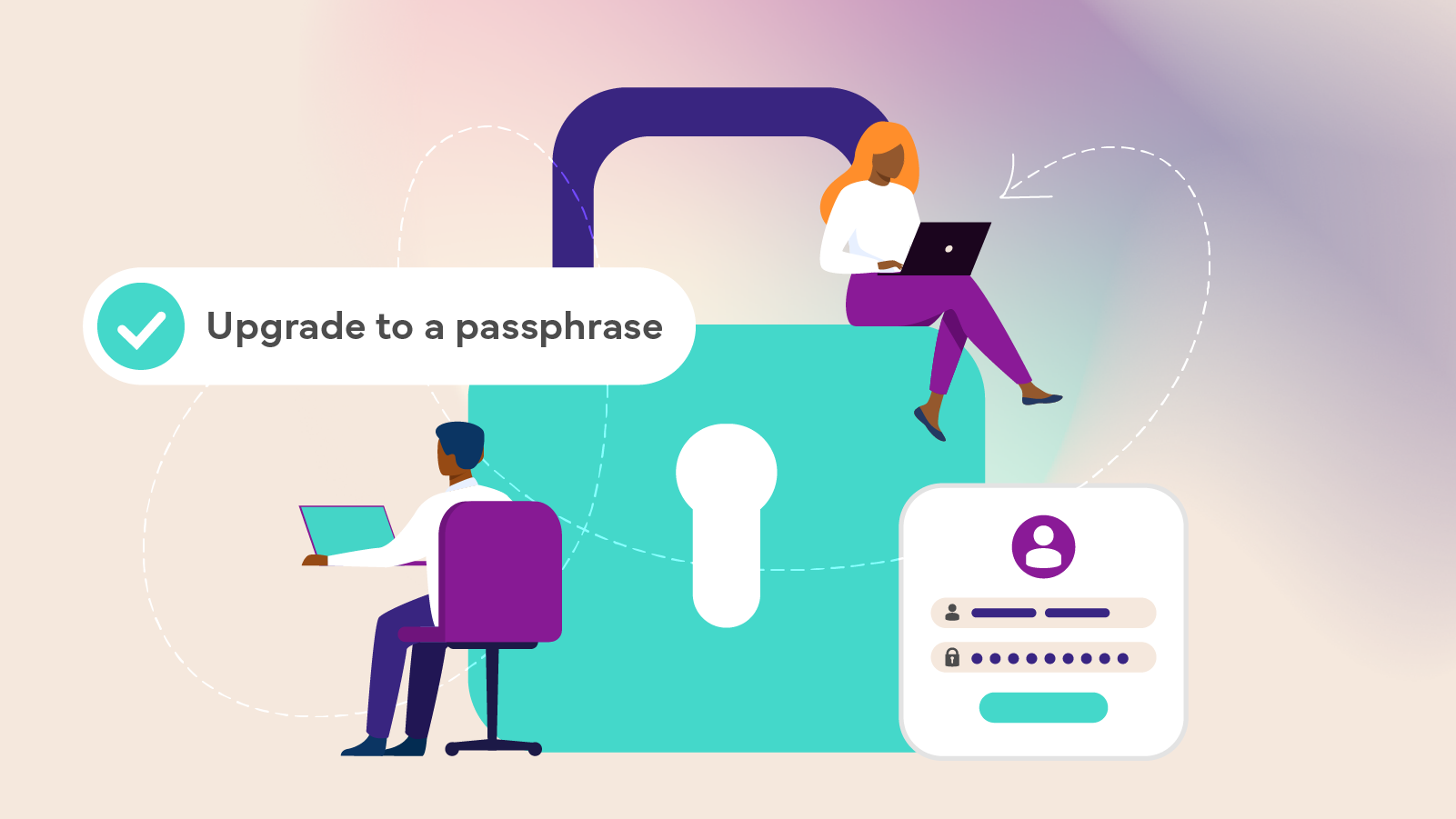
Choose a strong, unique password and turn on multi-factor authentication (MFA) for extra protection. This greatly reduces the risk of account compromise.
Step 5: Explore your tools
Once your account is active, you’ll have access to:
- Gmail with your custom email address
- Google Drive for file storage and sharing
- Google Calendar for meetings and reminders
- Docs, Sheets and Slides for creating documents
- Google Meet for video calls
You can access everything from the Google Workspace dashboard or via the app grid icon in the top-right corner of Google pages.
Step 6: Add your team (optional)
If you have staff:
- Go to the Admin console (admin.google.com)
- Select Users, then Add new user
- Create an email address and temporary password
- Share login details securely
As the admin, you can reset passwords, manage access and control security settings across your organisation.
Set yourself up for success
Google Workspace makes it easier to run your business from anywhere using professional, cloud-based tools. But good setup and strong security habits are essential.
To learn more about protecting your accounts, data and systems, explore our course catalogue and enrol in the free Cyber Wardens training program.